
React JS Fundamental Concepts
/ 14 min read
Updated:Table of Contents
Essential React.js Concepts: Everything You Need to Know
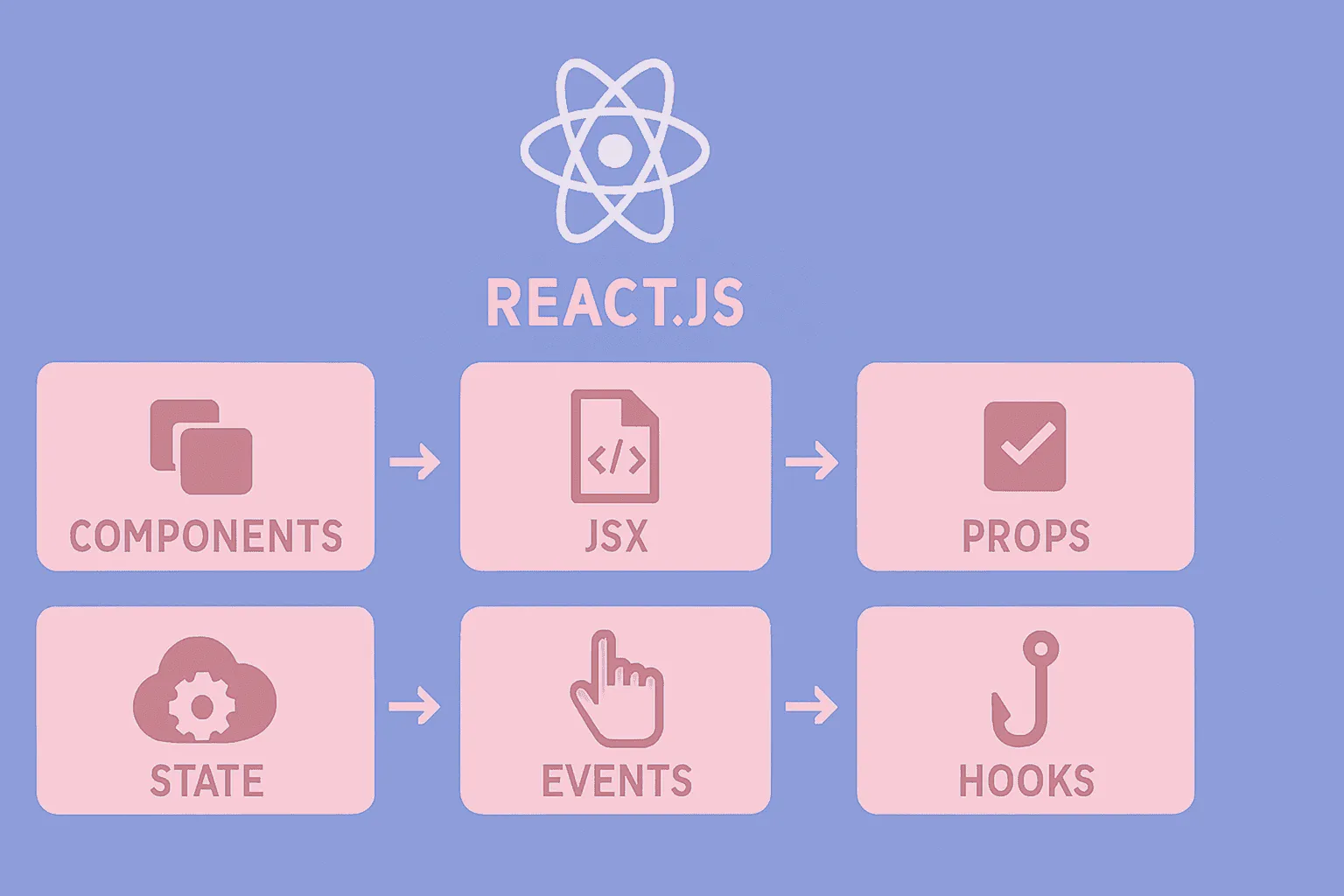
This comprehensive post covers all fundamental React concepts with practical examples and simple explanations. Let’s dive in.
Components in React — The Building Blocks
Everything in React is built from Components. Each component creates a piece of the user interface and can be reused multiple times.
- A button ➡️ A Component
- A product card ➡️ A Component
- Even a complete page ➡️ A collection of Components
Why components matter: They promote code reusability, maintainability, and modular design. Instead of writing the same UI code repeatedly, you build it once and use it everywhere.
Simple Component Example:
function Welcome() { return <h1>Hello World!</h1>;}Component with Props (Input):
function Greeting({ name }) { return <h1>Hello, {name}!</h1>;}Using Components:
function App() { return ( <div> <Welcome /> <Greeting name="React Developer" /> </div> );}JSX — When JavaScript Wears HTML Clothes
JSX is a special React syntax that allows you to write HTML-like code inside JavaScript. This means:
- Your code becomes more readable
- You can visualize UI structure more easily
- Writing DOM elements becomes simpler
Additional context: JSX is not actually HTML—it’s syntactic sugar that gets compiled to regular JavaScript function calls. Under the hood, it becomes React.createElement() calls.
Example:
function Button() { return <button className="primary">Click Me</button>;}Equivalent Without JSX (Harder!):
function ButtonWithoutJSX() { return React.createElement( 'button', { className: 'primary' }, 'Click Me' );}Important JSX Rules
1️⃣ Use camelCase for Attributes
classNameinstead ofclassonClickinstead ofonclick
Why? JSX is closer to JavaScript than HTML. In JavaScript, class is a reserved keyword, so React uses className.
2️⃣ Use { } for JavaScript Code
Anywhere you want to insert a JavaScript value or computation inside JSX, you must wrap it in curly braces {}.
function UserCard({ user }) {  const isOnline = user.lastSeen < Date.now() - 300000; // 5 minutes
  return (    <div className="user-card">      <h2>{user.name}</h2>      <p style={{ color: isOnline ? 'green' : 'red' }}>        {isOnline ? 'Online' : 'Offline'}      </p>    </div>  );}
Props — Passing Data Between Components
Props are like function parameters. You use them to send information from a parent component to a child component.
Key concept: Props flow in one direction only—from parent to child. This is called “unidirectional data flow” and makes React apps predictable and easier to debug.
Example: Blog Post Component
function BlogPost({ title, content, author, publishDate }) { return ( <article> <h1>{title}</h1> <div className="meta"> Author: {author} - Date: {publishDate} </div> <div className="content">{content}</div> </article> );}Usage:
function App() { return ( <BlogPost title="Learning React" content="React is great for building UIs..." author="Ali Ahmadi" publishDate="2024/04/15" /> );}Special Prop: Children — Internal Component Content
The children prop allows you to pass any content inside a component.
Why it’s useful: It creates flexible, reusable container components that can wrap any content.
Defining Card:
function Card({ children }) { return ( <div className="card"> <div className="card-content"> {children} </div> </div> );}Usage:
function App() { return ( <Card> <h2>Card Title</h2> <p>This content is passed as children</p> <button>Action Button</button> </Card> );}Important Prop: Key — For Rendering Lists
When you create lists, React needs each item to have a key to better track changes.
Why keys matter: Keys help React identify which items have changed, been added, or removed. This improves performance and prevents bugs in dynamic lists.
Example:
function TodoList({ todos }) { return ( <ul> {todos.map((todo) => ( <li key={todo.id}> {todo.text} </li> ))} </ul> );}Test data:
const todos = [ { id: 1, text: "Learn React" }, { id: 2, text: "Build an app" }, { id: 3, text: "Deploy to production" }];What is the Virtual DOM?
It’s like React maintains a mental map of the page and checks any changes in that map first, not in the browser’s actual DOM.
Why this matters: Direct DOM manipulation is slow. The Virtual DOM allows React to batch updates and minimize expensive DOM operations.
Virtual DOM Workflow
- State Changes → User clicks a button, types something, and data changes
- Create New Virtual DOM → React creates a new version of the page
- Diffing → New version is compared with the old version
- Reconciliation → Only the parts that changed are applied to the actual DOM
This makes React very fast and optimized. ⚡
Example – Rendering a Counter
function Counter() {  const [count, setCount] = useState(0);
  // When count changes:  // 1. New Virtual DOM is created  // 2. Compared with previous version  // 3. Only the counter text changes in the real DOM  return (    <div>      <p>Count: {count}</p>      <button onClick={() => setCount(count + 1)}>        Increment      </button>    </div>  );}
Event Handling in React
React uses Synthetic Events to manage events (like clicks, typing, form submissions).
What is a Synthetic Event?
An optimized, unified version of DOM events that behaves consistently across all browsers. React wraps native browser events to normalize differences between browsers.
Example – Managing Inputs and Buttons
function ContactForm() {  const [formData, setFormData] = useState({    name: '',    email: '',    message: ''  });
  const handleInputChange = (event) => {    const { name, value } = event.target;    setFormData(prev => ({      ...prev,      [name]: value    }));  };
  const handleSubmit = (event) => {    event.preventDefault();    console.log('Form submitted:', formData);  };
  const handleButtonClick = () => {    alert('Button clicked!');  };
  return (    <form onSubmit={handleSubmit}>      <input name="name" value={formData.name} onChange={handleInputChange} />      <input name="email" value={formData.email} onChange={handleInputChange} />      <textarea name="message" value={formData.message} onChange={handleInputChange} />      <button type="submit">Send Message</button>      <button type="button" onClick={handleButtonClick}>Click Me</button>    </form>  );}
State in React
State represents data that changes over time. Even if just one small value changes, React re-renders the entire component (which updates the UI).
Critical concept: State is what makes React components dynamic and interactive. Without state, components would be static and unchanging.
Important Hook: useState
Important note: When we change state, we don’t directly manipulate the value; we use the setter function so React knows to re-render.
Example – Managing Shopping Cart
import { useState } from 'react';
function ShoppingCart() {  const [items, setItems] = useState([]);  const [total, setTotal] = useState(0);
  const addItem = (item) => {    setItems(prev => [...prev, item]);    setTotal(prev => prev + item.price);  };
  const removeItem = (itemId) => {    const item = items.find(i => i.id === itemId);    setItems(prev => prev.filter(i => i.id !== itemId));    setTotal(prev => prev - item.price);  };
  return (    <div>      <h2>Shopping Cart</h2>      <p>Total: {total} USD</p>      <ul>        {items.map(item => (          <li key={item.id}>            {item.name} - {item.price} USD            <button onClick={() => removeItem(item.id)}>Remove</button>          </li>        ))}      </ul>    </div>  );}
Controlled Components
In controlled components, input values come from state and update state when the user makes changes.
This means React fully controls what the user types.
Why use controlled components? You have complete control over form data, can validate in real-time, and can easily manage complex form logic.
Example – Login Form
function LoginForm() {  const [credentials, setCredentials] = useState({    username: '',    password: ''  });
  const handleChange = (event) => {    const { name, value } = event.target;    setCredentials(prev => ({      ...prev,      [name]: value    }));  };
  return (    <form>      <input        type="text"        name="username"        value={credentials.username}        onChange={handleChange}        placeholder="Username"      />
      <input        type="password"        name="password"        value={credentials.password}        onChange={handleChange}        placeholder="Password"      />    </form>  );}
React Hooks
React Hooks are tools that allow you to use React features inside Function Components. You no longer need Class Components!
Historical context: Before Hooks (introduced in React 16.8), you had to use class components to access state and lifecycle methods. Hooks revolutionized React development by making functional components just as powerful.
Hooks have five main categories:
1️⃣ State Hooks — Managing Component State
useState
For storing data that needs to change, like input values or counters.
const [count, setCount] = useState(0);setCount(count + 1);useReducer
When your state becomes more complex (multiple different values or lots of logic), useReducer helps.
When to use: Complex state logic, multiple sub-values, or when the next state depends on the previous one in non-trivial ways.
function reducer(state, action) {  if (action.type === "add") return state + 1;  return state;}
const [state, dispatch] = useReducer(reducer, 0);dispatch({ type: "add" });
2️⃣ Context Hooks — Sharing Data Between Components 🌍
useContext
For getting values from a Context without having to pass props through every level.
Solves: “Prop drilling” problem where you pass props through many intermediate components.
const user = useContext(UserContext);3️⃣ Ref Hooks — Holding Values Without Re-rendering
useRef
For:
- Getting direct access to DOM elements (like input)
- Holding a value that doesn’t trigger re-render when changed
const inputRef = useRef(null);inputRef.current.focus();4️⃣ Effect Hooks — Doing Things Outside UI
useEffect
For performing side effects like:
- Changing document.title
- API requests
- Working with localStorage
Key difference from state: Effects run after render, not during it.
useEffect(() => { document.title = "Hello!";}, []);5️⃣ Performance Hooks — Improving Performance
useMemo
For caching the result of expensive calculations so they don’t re-run every time.
const sorted = useMemo(() => heavySort(data), [data]);useCallback
For keeping a function stable and preventing new versions from being created on every render.
Why it matters: Prevents unnecessary re-renders of child components that depend on function props.
const handleClick = useCallback(() => console.log("clicked"), []);Complete Example — Using All Important Hooks Together
The code below creates an optimized component that:
- Has state
- Focuses on input
- Optimizes heavy calculations with useMemo
- Keeps repetitive functions stable with useCallback
- Uses useEffect to change page title
import { useState, useEffect, useRef, useMemo, useCallback } from 'react';
function OptimizedComponent({ items }) {  const [filter, setFilter] = useState('');  const [count, setCount] = useState(0);  const inputRef = useRef(null);
  // useEffect for side effects  useEffect(() => {    document.title = `Count: ${count}`;  }, [count]);
  // useMemo for expensive calculations  const filteredItems = useMemo(() => {    return items.filter(item =>      item.name.toLowerCase().includes(filter.toLowerCase())    );  }, [items, filter]);
  // useCallback for stable function references  const handleItemClick = useCallback((item) => {    console.log('Item clicked:', item);  }, []);
  const focusInput = () => {    inputRef.current?.focus();  };
  return (    <div>      <input        ref={inputRef}        type="text"        value={filter}        onChange={(e) => setFilter(e.target.value)}        placeholder="Filter items..."      />      <button onClick={focusInput}>Focus Input</button>
      <p>Count: {count}</p>      <button onClick={() => setCount(c => c + 1)}>Increment</button>
      <ul>        {filteredItems.map(item => (          <li key={item.id} onClick={() => handleItemClick(item)}>            {item.name}          </li>        ))}      </ul>    </div>  );}
Effects and Side Effects in React
What is an Effect?
Effects (using useEffect) allow us to do things that are outside React’s normal work. For example:
- Fetching data from APIs
- Direct DOM manipulation
- Subscribing or unsubscribing to services
React by default only manages UI. But when we need to communicate with the outside world, we use Effects.
Deeper explanation: React’s rendering is pure—given the same props and state, it should always produce the same output. Effects let you step outside this pure world to interact with external systems.
Example: Fetching User Data from API
import { useState, useEffect } from 'react';
function UserProfile({ userId }) {  const [user, setUser] = useState(null);     // Store user data  const [loading, setLoading] = useState(true); // Loading state  const [error, setError] = useState(null);     // Errors
  useEffect(() => {    async function fetchUser() {      try {        setLoading(true);        const response = await fetch(`/api/users/${userId}`);        if (!response.ok) throw new Error('Failed to fetch user');
        const userData = await response.json();        setUser(userData);      } catch (err) {        setError(err.message);      } finally {        setLoading(false);      }    }
    fetchUser();  }, [userId]);  // ❗ This Effect only runs when userId changes
  if (loading) return <div>Loading...</div>;  if (error) return <div>Error: {error}</div>;  if (!user) return <div>No user found</div>;
  return <div>Hello, {user.name}!</div>;}
Key points:
useEffectruns whenever values in the dependency array change- If the array is empty
[], Effect runs only once - Suitable for API requests, timers, external system interactions
Cleanup Effect
Code you return inside useEffect runs when the component unmounts or before the Effect runs again.
Why cleanup matters: Prevents memory leaks, removes event listeners, cancels subscriptions.
Example:
useEffect(() => {  const timer = setInterval(() => {    console.log('Checking for updates...');  }, 30000);
  return () => {    clearInterval(timer); // Remove timer when component unmounts  };}, []);
Refs — Direct DOM Access
What is a Ref?
Refs allow us to:
- Access a DOM element directly
- Focus on an input
- Perform measurements
- Work with third-party libraries
In React, we usually don’t use DOM directly, but Refs are essential in special cases.
When to use refs: When you need to imperatively modify a child component or DOM node, measure DOM elements, integrate with non-React libraries, or manage focus/text selection.
Example: Controlling Video Playback with useRef
import { useRef, useEffect, useState } from 'react';
function VideoPlayer({ src }) {  const videoRef = useRef(null);  const [isPlaying, setIsPlaying] = useState(false);
  useEffect(() => {    videoRef.current?.focus(); // Focus after mount  }, []);
  const togglePlayPause = () => {    const video = videoRef.current;    if (!video) return;
    if (isPlaying) video.pause();    else video.play();
    setIsPlaying(!isPlaying);  };
  const handleTimeUpdate = () => {    const video = videoRef.current;    if (video) {      console.log(`Current time: ${video.currentTime}`);    }  };
  return (    <div>      <video        ref={videoRef}        src={src}        onTimeUpdate={handleTimeUpdate}        width="100%"      />      <button onClick={togglePlayPause}>        {isPlaying ? 'Pause' : 'Play'}      </button>    </div>  );}
Important notes:
useRef(null)creates a “box” whose value React doesn’t change- Changing
ref.currentdoesn’t cause re-render - If you need persistent information without re-rendering →
useRef
Context — Passing Data Without Prop Drilling
What is Prop Drilling?
When you have to pass data through multiple component levels, even if some components don’t need it.
Context solves this problem.
Real-world analogy: Instead of passing a message person-to-person through a chain, Context is like broadcasting it to everyone who needs to hear it.
Steps to Create Context
1️⃣ Create Context
const ThemeContext = createContext();const UserContext = createContext();2️⃣ Create Provider
The Provider makes data available to all child components.
function ThemeProvider({ children }) {  const [theme, setTheme] = useState('light');
  const toggleTheme = () => {    setTheme(prev => prev === 'light' ? 'dark' : 'light');  };
  return (    <ThemeContext.Provider value={{ theme, toggleTheme }}>      {children}    </ThemeContext.Provider>  );}
3️⃣ Use Context Inside Component (useContext)
function Header() {  const { theme, toggleTheme } = useContext(ThemeContext);  const { user, logout } = useContext(UserContext);
  return (    <header className={`header ${theme}`}>      <h1>My App</h1>      <button onClick={toggleTheme}>        Switch to {theme === 'light' ? 'Dark' : 'Light'} mode      </button>
      {user ? (        <div>          Hello, {user.name}!          <button onClick={logout}>Logout</button>        </div>      ) : (        <button>Login</button>      )}    </header>  );}
Best practices: Don’t overuse Context. It’s great for truly global data (theme, auth, language), but for component-specific data, props are often better.
Portals — Rendering Outside the Main DOM Tree
Normally, every React component renders inside a specific DOM structure (the main app tree). But sometimes we need to render content outside this tree—for example:
- Modals
- Dropdowns
- Tooltips
- Toast notifications
Why Portals matter: Some elements (like Modals) need to be on top of all other elements. Portals help with better CSS access (like z-index) and don’t complicate page structure.
Portals help render a React component anywhere in the DOM, without breaking its connection to state and props.
Example
import { createPortal } from 'react-dom';import { useState } from 'react';
function Modal({ isOpen, onClose, children }) {  if (!isOpen) return null;
  return createPortal(    <div className="modal-overlay" onClick={onClose}>      <div className="modal-content" onClick={(e) => e.stopPropagation()}>        <button className="modal-close" onClick={onClose}>          ×        </button>        {children}      </div>    </div>,    document.body  // Renders directly into document.body  );}
function App() {  const [isModalOpen, setIsModalOpen] = useState(false);
  return (    <div className="app">      <h1>My App</h1>      <button onClick={() => setIsModalOpen(true)}>Open Modal</button>
      <Modal        isOpen={isModalOpen}        onClose={() => setIsModalOpen(false)}      >        <h2>Modal Content</h2>        <p>This modal is rendered outside the app's DOM tree!</p>      </Modal>    </div>  );}
Suspense — Simple Loading Management
When a component is lazy loaded or needs data fetching in the future, you need to show a “loading…” state.
Instead of always managing this yourself, React provides a simple way:
“If my component isn’t ready yet, show something else.”
What does it do?
- Manages loading for lazy-loaded components
- Manages loading for data (in React 18+)
- Makes code cleaner
Future-forward: Suspense is becoming more powerful with React Server Components and advanced data fetching patterns.
Example
import { Suspense, lazy } from 'react';
const LazyComponent = lazy(() => import('./LazyComponent'));
function LoadingSpinner() {  return (    <div className="loading-spinner">      <div className="spinner"></div>      <p>Loading...</p>    </div>  );}
function App() {  return (    <div>      <h1>My App</h1>
      <Suspense fallback={<LoadingSpinner />}>        <LazyComponent />      </Suspense>
      <Suspense fallback={<div>Loading user data...</div>}>        <UserProfile userId="123" />      </Suspense>    </div>  );}
Error Boundaries — Preventing Full App Crashes
If one component has an error, React by default crashes the entire UI. But Error Boundaries catch errors and only break that problematic section, showing an error message instead.
Like Try/Catch but specifically for UI.
Which errors do they catch?
- Runtime errors in rendering
- Errors in lifecycle methods
- Errors in child components
❗ Note: Error Boundaries don’t catch errors in event handlers.
Additional context: Error Boundaries are still class-based because there’s no Hook equivalent yet. This is one of the few remaining use cases for class components.
Example
import { Component } from 'react';
class ErrorBoundary extends Component {  constructor(props) {    super(props);    this.state = { hasError: false, error: null };  }
  static getDerivedStateFromError(error) {    return { hasError: true, error };  }
  componentDidCatch(error, errorInfo) {    console.error('Error caught by boundary:', error, errorInfo);    // You can also log to an error reporting service here  }
  render() {    if (this.state.hasError) {      return (        <div className="error-boundary">          <h2>Something went wrong!</h2>          <p>Please reload the page.</p>          <button onClick={() => this.setState({ hasError: false, error: null })}>            Try Again          </button>        </div>      );    }
    return this.props.children;  }}
function ProblematicComponent({ user }) {  if (!user) {    throw new Error('User data is required');  }
  return <div>Hello, {user.name}!</div>;}
function App() {  return (    <ErrorBoundary>      <ProblematicComponent user={null} />    </ErrorBoundary>  );}
Final Words
By learning all these concepts and practicing appropriately, you can be confident you’ve reached a very good level in developing and building React applications.
I’d be happy to hear your feedback on this post.
What is your opinion?