
Essential Linux Commands: Beginner to Pro Guide
/ 6 min read
Table of Contents
Essential Linux Commands – From Beginner to Pro
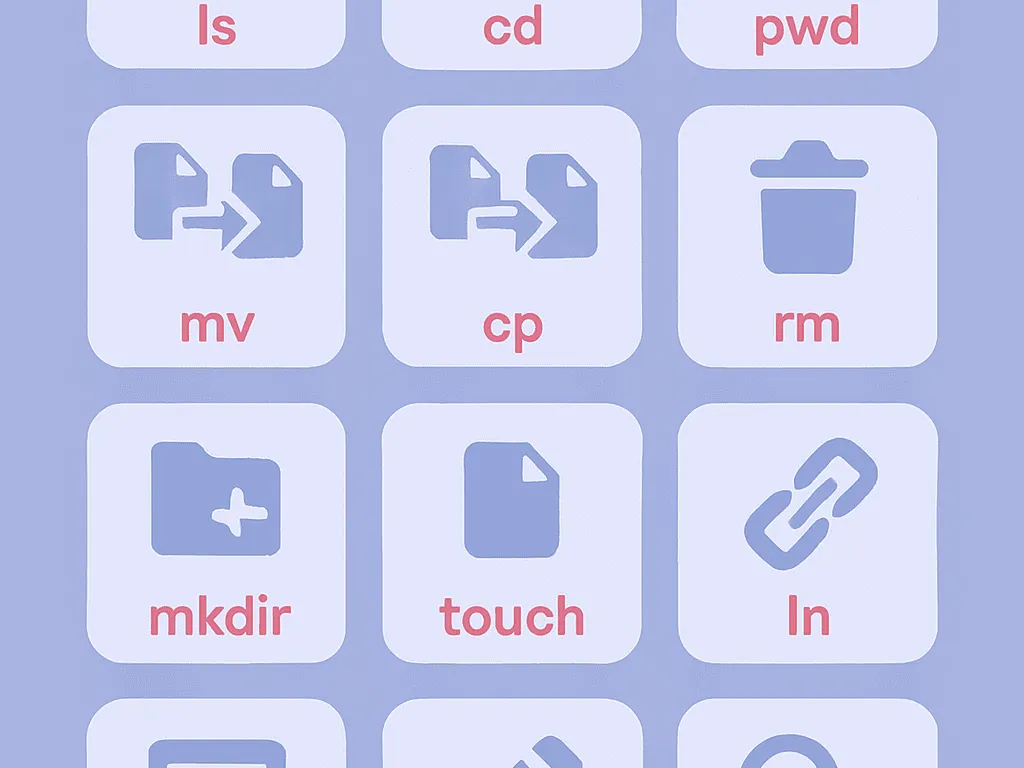
Linux 🐧 is one of the world’s most powerful and popular operating systems, used across servers, personal computers, mobile devices, and embedded systems. One of its defining features is the Terminal (command-line interface), which gives users complete control over the system by typing commands. This guide covers the most important Linux commands every user should know.
Learning Linux commands isn’t just essential for sysadmins and developers — it gives you a deep understanding of how the OS actually works. Unlike a graphical interface, the command line enables task automation, remote management, and access to advanced capabilities that are difficult or impossible to achieve through a GUI.
1. Sudo Access (Super User Do)
The root account in Linux has the highest level of system access — it can make any change to the system. Most administrative and configuration tasks require root privileges.
Setting a Password for the Root Account
By default, root has no password on many Linux distributions. To set or change it:
sudo -i passwdThe system will prompt you to enter the new password twice. Note that nothing appears on screen while typing — this is a security feature called “blind input.”
Entering the Sudo Environment
To switch into a full root session (where you don’t need to prefix every command with sudo):
sudo -iAfter entering your current user’s password, the prompt changes from $ to #, indicating root access. Be very careful in this mode — a wrong command can delete data or break the system. Only sensitive administrative commands require sudo or a root session; regular commands do not.
2. clear – Clear the Terminal Screen
After extended terminal use, the screen fills with output and becomes cluttered. The clear command gives you a clean workspace:
clearImportant: This doesn’t actually delete previous output — it just scrolls it out of view. You can still scroll up to see it.
💡 Shortcut:
Ctrl+Ldoes the same thing, faster.
3. pwd – Print Working Directory
pwd shows the full absolute path of the directory you’re currently in. This is especially useful when navigating deeply nested folder structures.
pwdKnowing your current location is critical because many Linux commands operate relative to your working directory. Misidentifying your location is a common source of errors for beginners.
4. cd – Change Directory
cd is the primary command for navigating the Linux file system. Paths can be absolute (starting from /) or relative (starting from your current location).
| Command | Action |
|---|---|
cd /path/to/dir | Go to a specific directory |
cd / | Go to the root of the file system |
cd ~ or cd | Go to your home directory |
cd .. | Go up one level (parent directory) |
cd - | Go back to the previous directory |
The cd - command is particularly handy — it toggles between your current and last visited directory, like an “undo” for navigation.
5. ls – List Directory Contents
ls is one of the most frequently used Linux commands. It lists the files and subdirectories within a directory.
| Command | Action |
|---|---|
ls | List current directory contents |
ls /path | List contents of a specific path |
ls .. | List parent directory contents |
ls * | Recursively list subdirectories |
ls -l | Detailed (long) listing |
The -l flag provides a detailed view with the following columns:
| Column | Description |
|---|---|
| 1st | File permissions (e.g., -rwxr-xr-x) |
| 2nd | Number of hard links |
| 3rd | Owner name |
| 4th | Group name |
| 5th | File size in bytes |
| 6th | Last modified date/time |
| 7th | File/directory name |
6. mkdir – Make Directory
mkdir creates new directories.
mkdir newFolder # Create in current directorymkdir /path/newFolder # Create at a specific pathmkdir {dir1,dir2,dir3} # Create multiple directories at once (no spaces around commas)mkdir -m a=rwx dirName # Create with specific permissions (rwx for all users)mkdir -p parent/child # Create nested directories (creates parent if it doesn't exist)The -p flag (“parents”) is very useful — without it, trying to create parent/child when parent doesn’t exist would throw an error.
7. rmdir – Remove Directory
rmdir removes empty directories only.
rmdir dirName # Remove an empty directoryrmdir -p dirName # Remove nested empty directoriesrmdir --ignore-fail-on-non-empty # Suppress error if directory isn't empty (but won't delete it)⚠️ Note: To delete a directory that contains files, use
rm -r dirName. Use this with extreme caution — deleted files are not recoverable through the Recycle Bin.
8. man – Manual Pages
man is your built-in documentation system. It displays comprehensive documentation for any Linux command:
man ls # Shows the full manual for the ls commandNavigation Keys Inside man
| Key | Action |
|---|---|
Space | Next page |
b | Previous page |
q | Quit |
/word | Search for a term |
Manual Page Sections
- NAME – Command name and brief description
- SYNOPSIS – Usage syntax
- DESCRIPTION – Full explanation
- OPTIONS – All available flags
- EXAMPLES – Practical usage examples
- SEE ALSO – Related commands
man is arguably the most important command to learn — it makes you self-sufficient and removes the need to constantly search the web.
9. cp – Copy Files
cp copies files and directories from one location to another.
cp source.txt destination.txt # Copy file with a new namecp file.txt /path/to/directory/ # Copy file to another directoryUseful Flags
| Flag | Description |
|---|---|
-r | Recursively copy directories and their contents |
-i | Prompt before overwriting existing files |
-p | Preserve file permissions and timestamps |
-v | Verbose — show what’s being copied |
10. grep – Search Inside Files
grep is one of Linux’s most powerful tools. It searches for a pattern (text or regex) within files and prints matching lines.
grep [search_pattern] [file_path]grep error /var/log/syslog # Find all lines containing "error" in the system logUseful Flags
| Flag | Description |
|---|---|
-i | Case-insensitive search |
-r | Recursively search all files in a directory |
-n | Show line numbers with results |
-c | Count the number of matching lines |
-v | Invert — show lines that do not match |
grep is frequently combined with other commands using pipes (|). For example: ls -l | grep ".txt" lists only .txt files.
11. cat – View and Combine Files
cat (short for concatenate) is a versatile command used for displaying, creating, copying, and merging files.
cat file.txt # Display file contentscat file1.txt file2.txt # Display multiple files sequentiallycat > newfile.txt # Create a new file (type content, then Ctrl+D to save)cat source.txt > dest.txt # Copy content to another file (overwrites)cat extra.txt >> existing.txt # Append content to the end of a filecat file1 file2 > merged.txt # Merge multiple files into one💡 The
>operator overwrites a file, while>>appends to it. This distinction is important to avoid accidental data loss.
12. chmod – Change File Permissions
chmod (Change Mode) controls who can read, write, or execute a file. Linux uses a three-tier permission model:
- u (user/owner) – the file’s owner
- g (group) – users belonging to the file’s group
- o (others) – everyone else
Each tier can have three types of permissions:
- r (read) = 4
- w (write) = 2
- x (execute) = 1
Symbolic Method
chmod u=rwx,g=rw,o=r file.txtNumeric Method
chmod 755 file.txtEach digit is the sum of the permission values. For example, 755 means:
- 7 (owner) = 4+2+1 → read + write + execute
- 5 (group) = 4+1 → read + execute
- 5 (others) = 4+1 → read + execute
Permission Reference Table
| Number | Symbol | Meaning |
|---|---|---|
| 0 | --- | No permissions |
| 1 | --x | Execute only |
| 2 | -w- | Write only |
| 3 | -wx | Write + Execute |
| 4 | r-- | Read only |
| 5 | r-x | Read + Execute |
| 6 | rw- | Read + Write |
| 7 | rwx | Full permissions |
Final Words
These commands form the foundation of Linux command-line proficiency. They are used daily by millions of users, sysadmins, and developers worldwide. The best way to master them is through hands-on practice — open a terminal and try each one. Use man [command] whenever you want to explore further options or understand a command more deeply.
Linux rewards curiosity — the more you use it, the more powerful it becomes.
🚀 Good luck on your Linux journey!
What is your opinion?